
Connecting Hearing Aids to TV via Bluetooth
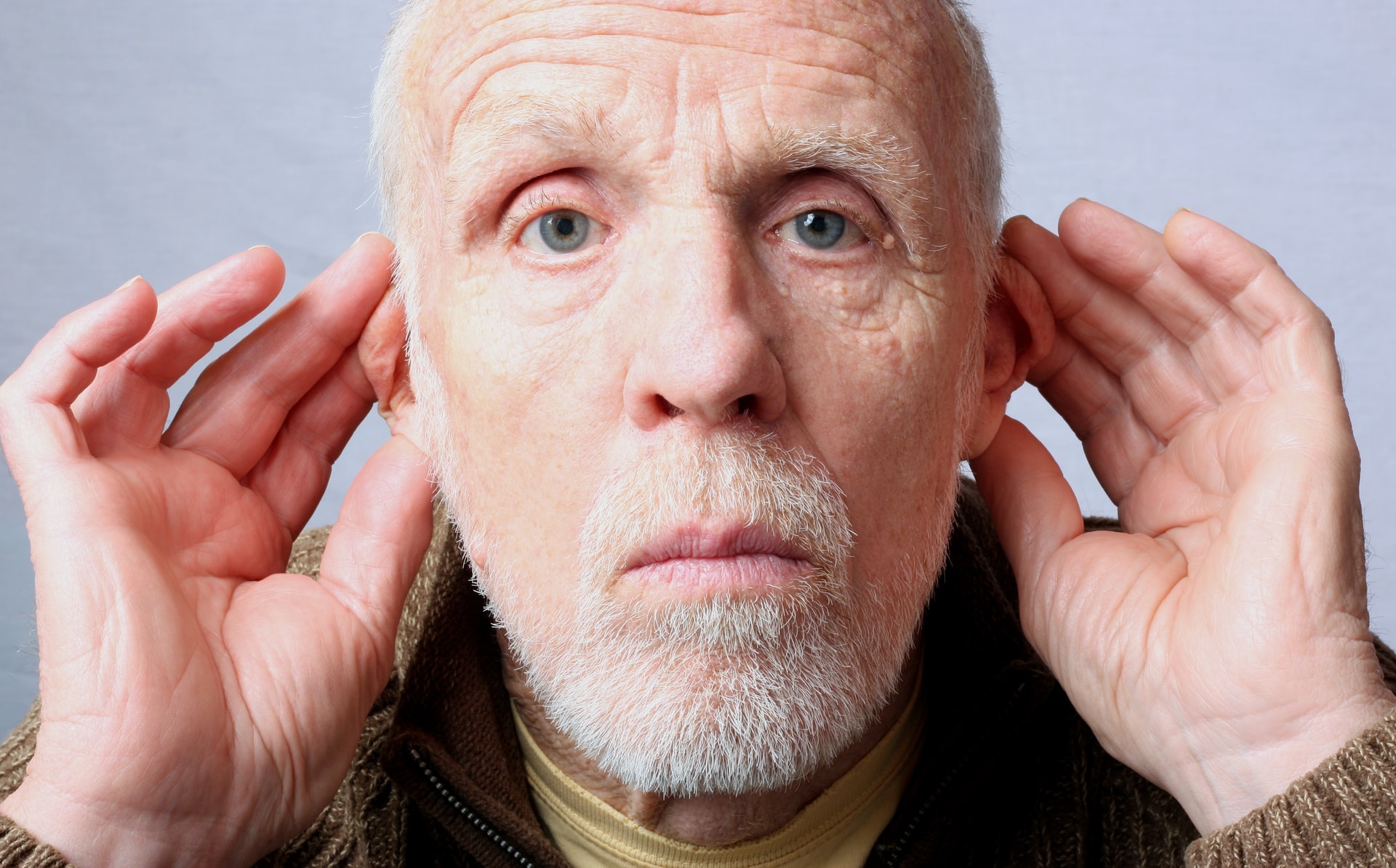
If you’ve wondered if you can connect your hearing aids to your TV and watch as well as stream the best movies and TV shows, you’re in luck because this is definitely something you can do!
With the advancement in technology over the years, hearing aids can connect to your television via bluetooth, allowing for a seamless entertainment experience.
Digital hearing aids such as Beltone bluetooth hearing aids are a new generation of wireless technology that will help you hear clearly and stream sound directly to your devices. When people wear Bluetooth hearing aids, they enjoy life more because it’s easier to listen and communicate.
Benefits of using bluetooth hearing aids
Bluetooth-enabled hearing aids are a significant step forward in assisting hearing-impaired individuals live better lives. The signal from your television and music from your iPhone, Android smartphone, or laptop can be wirelessly transmitted directly into your Bluetooth hearing aid, for example, with wireless technology. You may also listen to the song in one or both ears using Bluetooth streaming!
Bluetooth hearing aids are becoming increasingly popular, as they offer a number of benefits over traditional hearing aids. They can be easily connected to bluetooth-enabled devices, such as smartphones, tablets, and computers. This allows users to stream audio directly to their hearing aids, without the need for messy wires or expensive accessories.
Bluetooth hearing aids also offer improved sound quality and clarity, as well as enhanced battery life. In addition, bluetooth hearing aids are much more discreet than traditional hearing aids, making them ideal for people who want to maintain a natural appearance.
For example, Beltone bluetooth hearing aids allow you to change the volume to your preferred levels, which is another benefit of Bluetooth hearing aids available in Australia. If you go into a less noisy room or one with a lot of background noise, you can simply lower the volume according to your needs. This indicates an improvement from earlier hearing aids as technology has advanced so much over the years.
How to connect your heading aids to your TV
Connecting your hearing aids to your television via bluetooth is one of the easiest things to do once you’ve had a go and understand how it works.
If you have a bluetooth-enabled hearing aid, you can connect it to your TV in order to improve your audio experience.
Here’s instructions on how to do it:
- Make sure your hearing aid is turned on and in pairing mode.
- Go to your TV’s settings menu and find the bluetooth setting.
- Select your hearing aid from the list of bluetooth devices.
- You may need to enter a PIN code; if so, consult your hearing aid’s manual for the correct code.
- Once connected, adjust the volume as needed using your TV’s remote control.
If you are experiencing any issues connecting your bluetooth hearing aid to your TV, consult the support documentation for your hearing aid or contact a hearing specialist for help. With a little patience and some troubleshooting, you can enjoy your favourite shows and movies with crystal-clear audio that truly enhances your experience.
Issues you may face
Below are some issues you might encounter with your bluetooth hearing aids and connecting it to your TV and here’s how to troubleshoot them:
- Make sure your hearing aids are in range to your phone as well as your TV so that it can connect easily.
- Make sure your Bluetooth hearing aids are turned on correctly and can be found by devices, this can be checked in settings or you can get a health care specialist to assist you.
- Make sure your phone isn’t in aeroplane mode so your bluetooth hearing aids can connect easily.
- Make sure you turn your hearing aids off and then on when trying to pair it to a device.
If you’re still having many issues with pairing it to your TV or device, contact our team at Ace Audiology today so we can help you figure out a solution.
Get in touch with our team at Ace Audiology
If you’re looking for your next purchase of Bluetooth hearing aids from any of the leading hearing aid manufacturers, make sure you contact our team at ACE Audiology today!
With bluetooth hearing aids, you will be able to communicate more easily with others. You won’t have to worry about lip reading or trying to hear through background noise. Bluetooth hearing aids can also help you connect to electronic devices like TVs and phones. This can give you more independence and allow you to enjoy your favourite activities again.
We have a team of dedicated and skilled staff at Ace Audiology who can help you make the right decisions for your hearing and also help you pair your hearing aids to your TV so you can enjoy watching the things you love.
Contact our team today via our website or give us a call so we can assist you as soon as possible.